

Set Your Availability
By Wayne Scott

Once your profile is approved, you control exactly when you are open for work. Your availability is one of the simplest ways to look organised and reliable to local households, because it tells them when you can realistically be reached and booked. This guide walks you through setting your weekly hours, adding time slots and blocking out holidays, all from one place.
A key thing to understand first is that there is a single availability calendar that covers all of your services. You do not set separate hours for each service you offer. Whatever a household is enquiring about, they see the same set of hours, which keeps everything clean and consistent for you.
Setting your weekly availability
-
Open your availability page. Once you are approved and logged in, go to your availability page. This is where your whole week lives, laid out from Monday to Sunday.
-
Turn each day on or off. For each day, Monday to Sunday, you turn availability on or off. If you never work on a Sunday, simply leave it off. If you work most weekdays, switch those on. This gives households an honest picture at a glance.
-
Add one or more time slots to each working day. For any day you have switched on, you set one or more time slots to say which parts of that day you are available. For example, you might set a morning slot and a separate afternoon slot, leaving a gap for lunch or travel.
-
Keep your slots within the allowed hours. Time slots run within roughly 06:00 to 22:00 and move in half-hour steps. This keeps your hours sensible and easy for households to read, while still giving you plenty of room for early starts or evening jobs.
-
Make sure your slots do not overlap. On any single day, your time slots must not overlap one another. Each slot should have a clear start and end that does not run into the next. If two slots clash, adjust the times so they sit neatly side by side.
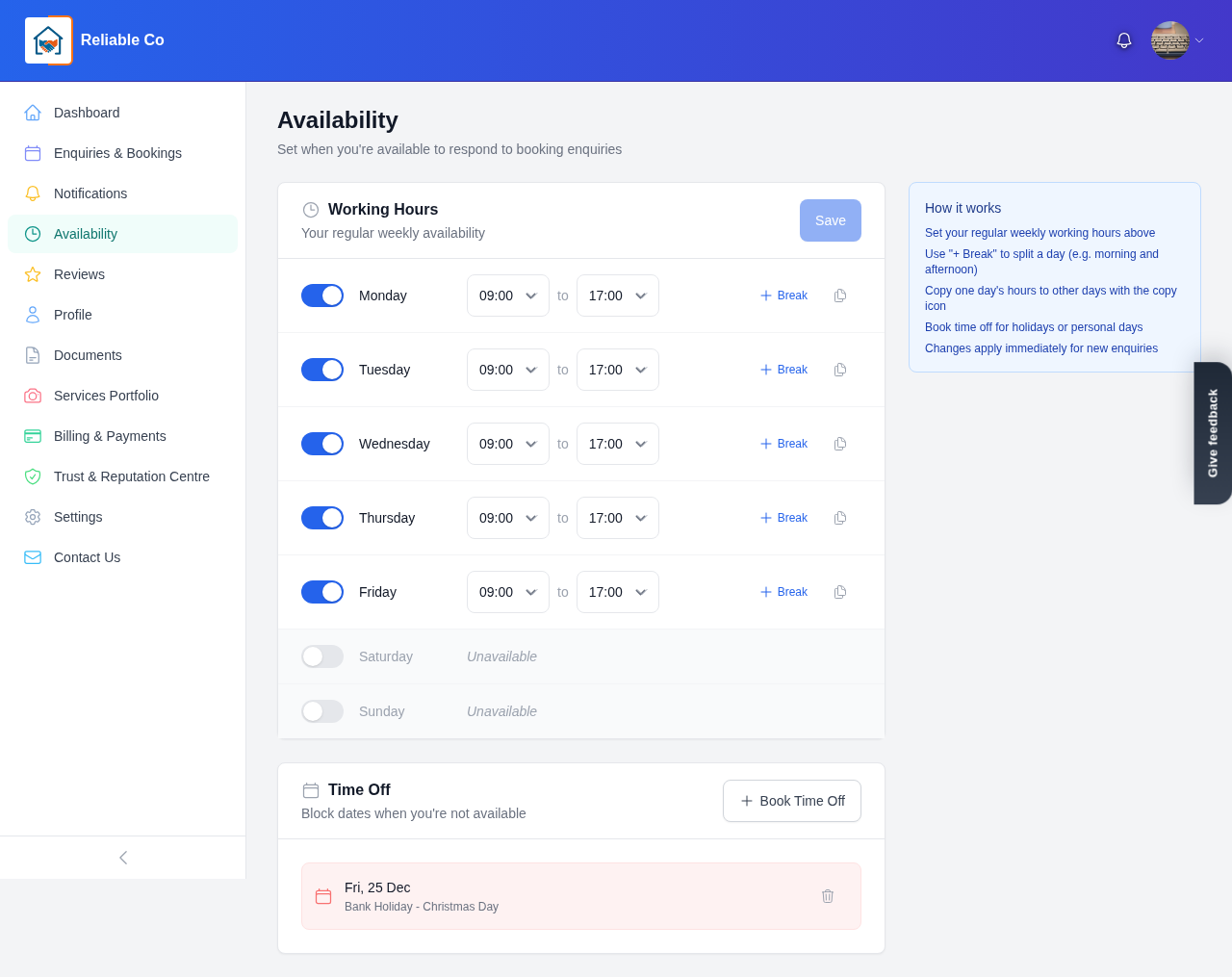
Take a moment to picture a normal working week and build it out day by day. Most providers set this once and only revisit it when their routine changes, so it is worth getting right.
Blocking out holidays and breaks
Life happens, and your calendar should reflect it. When you have a holiday, a day off, or a block of time you simply cannot take work, you mark it as an exception rather than rebuilding your whole week.
-
Use the exception tool. On your availability page, select + Add Exception. This lets you carve out a specific date when your normal weekly hours should not apply.
-
Choose the date you are unavailable. Mark the date you want to block out. If you are away for several days, you can add an exception for each affected date.
-
Optionally narrow it to a time range. You do not always need to block a whole day. You can optionally mark just a time range on that date as unavailable, which is handy for a morning appointment, a school run or a half day.
-
Add an optional reason. You can include an optional reason for the exception, such as a holiday or a personal commitment. This is for your own reference and helps you remember why a date is blocked when you look back later.
Exceptions sit on top of your normal weekly hours, so you do not have to switch days off and on again around a single holiday. Once the date has passed, your usual availability simply continues as before.
Keeping your availability honest
Your availability is a promise to local households, so the more accurate it is, the better your experience will be. A few simple habits help:
- Review it when your routine changes. If you take on a regular weekday commitment or stop working weekends, update your weekly hours to match.
- Add exceptions early. As soon as you book a holiday or a day off, add the exception so households are not enquiring for a time you cannot work.
- Keep slots realistic. Build in time for travel and breaks rather than packing every half hour, so the work you accept is work you can comfortably deliver.
Accurate availability also supports your reliability over time, because you are far less likely to turn away or rearrange work you never had room for in the first place.
What happens next
With your availability set, you are ready to receive and handle enquiries from households in your area. The next natural step is learning how those enquiries arrive and how you respond to them. See our guide on how to manage enquiries and bookings to see the full picture from first enquiry to completed job.
Setting your hours is one of the quickest wins on DomusVesta, and once it is done it quietly works in the background for you. A few minutes now means households see exactly when you are ready to help, and that is a great foundation for building local trust.
Looking for a trusted local pro?
Find a trusted how it works near you →